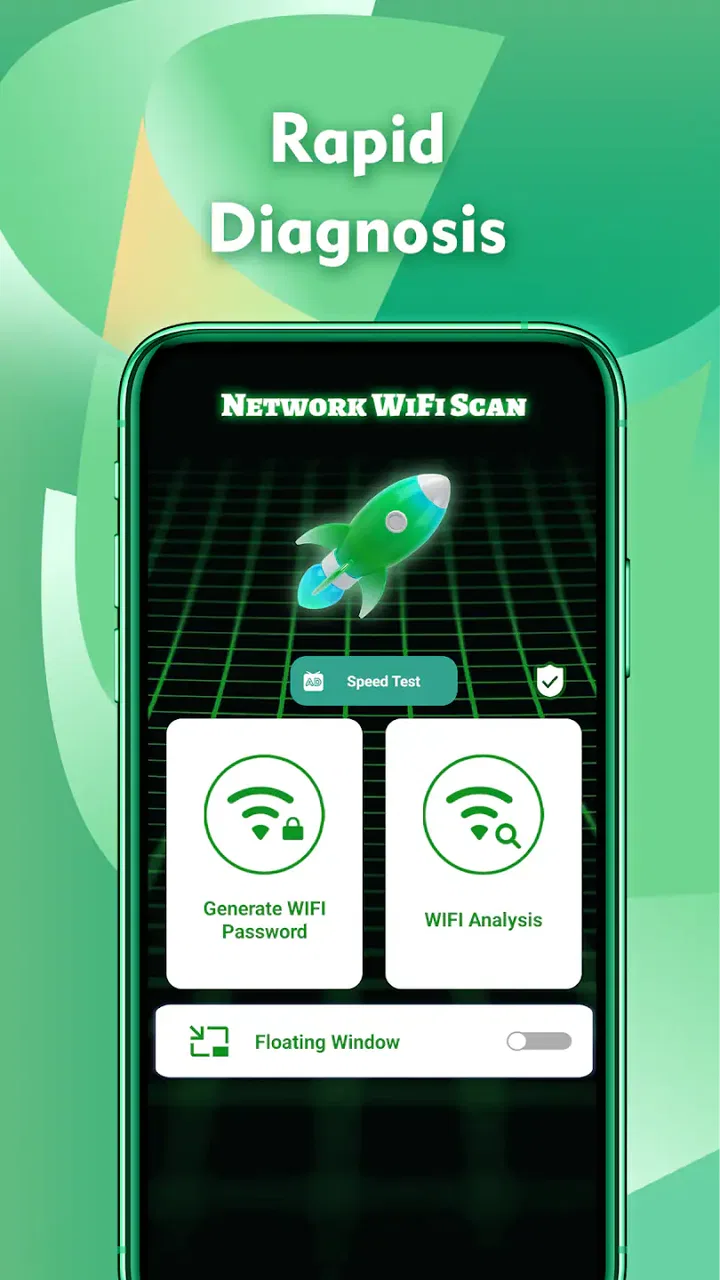
Network WiFi Scan
- 4.4
- Rating
- 500.00K
- Installs
- Free
- Price

 Analysis by App-foxy
Network WiFi Scan is a free tools app from Appora studio that I would describe as a starting point for exploring nearby wireless information rather than a complete network-management suite. Its purpose is simple: help you look more closely at the Wi-Fi environment around you. That can be useful when a connection feels unreliable, when several networks appear in the same place, or when you want a clearer view of what your phone can detect.
I approached it as an everyday troubleshooting tool, not as something I would leave open all day. The most useful question is not whether it replaces every network utility, but whether it gives you a quick way to investigate a wireless problem before changing router settings or calling your internet provider. In that role, Network WiFi Scan is easiest to appreciate when you use it as a diagnostic first step.
What makes the app useful in ordinary situations
The app belongs to the tools category, and its focus is narrow enough to be understandable immediately. You open it because you want information about the wireless networks your device can see. That makes it relevant at home, in an office, in an apartment building, or anywhere several Wi-Fi signals overlap.
You May Also Like

 Blood Strike: 2.5 Anniversary
Blood Strike’s Loadouts Turn Every Drop Into a Tactical Gamble
A close look at Blood Strike’s custom loadouts: how fast access to signature weapons reshapes its battle royale rhythm, rewards preparation, and narrows the gap between fights.

 Pandora - Music & Podcasts
Pandora’s Music Is Easy to Start, but Harder to Recover
Pandora’s strength is its low-effort path from a seed to a station. Its weak spot is how much confidence it asks you to place in connection, setup, and quiet recovery.

 8 Ball Pool
 Is Built on Rivalries, Rematches, and Routine
A close look at the rivalries, rematches, shared routines, and unanswered safety questions that turn a quick pool match into a persistent mobile community.

 Samsung Music
’s Quiet Strength Is Playing What You Already Own
Its reach comes less from spectacle than from dependable access to a personal library. That simplicity is both the app’s strongest retention engine and its ceiling.

 AccuWeather: Weather Radar
AccuWeather Review: A Quick, Clear Forecast for Everyday Decisions
For everyday plans, the best forecast is the one you can understand quickly. AccuWeather makes rain timing, radar, and local conditions easy to act on, with a few trade-offs.

 Hill Climb Racing
Why Hill Climb Racing Still Turns Crashes Into One More Run
A tiny car, a bumpy hill and one more upgrade: Hill Climb Racing keeps resurfacing because its simple chaos makes every near-miss feel personal.
More From Our News Desk



A realistic example is a bedroom where streaming works smoothly in the morning but becomes unreliable later in the day. Instead of immediately blaming the broadband connection, I would use a scanner such as this to compare what the phone sees in different parts of the home. If the wireless environment looks noticeably busier in one location, that gives me a sensible direction for the next test: move closer to the router, try a different room, or check whether another device has the same problem.
That workflow matters because internet access and Wi-Fi access are not exactly the same thing. A speed test can tell you how a connection performs at one moment, but it does not always explain why one room behaves differently from another. A wireless scanner is more useful for the local part of the problem. It helps you investigate the air between your device and the access point rather than treating every failure as an issue with the provider.
The app’s store summary presents it as a way to uncover information in the wireless world. I find that description broad, but it points toward the right expectation: this is an observation tool. It should help you inspect what is visible, not magically repair a weak signal, improve your subscription, or reveal private information about networks you do not control.
Where people are most likely to get stuck
The first point of friction is usually not the scan itself. It is the phone’s own wireless state. If Wi-Fi is disabled, the device has poor location access, or the operating system restricts the information available to nearby-network tools, the result may look empty or incomplete. That can make the app seem broken even when the real issue is a system setting.
My practical advice is to begin with the basics before judging the results. Turn on Wi-Fi, keep the phone awake for the first scan, and check the Android settings related to location access if the app asks for them. Modern mobile systems often connect nearby wireless discovery with location controls, so a scanner may need that system access to show useful information. This is not a reason to grant everything automatically; it is a reason to read the request and decide whether the function is worth it for your situation.
Another common misunderstanding is expecting a scan to behave like a live signal meter without any delay. Wireless information can change as you move, and the phone may need time to refresh what it sees. If the list does not change instantly, I would wait briefly, move a few steps, and run the observation again rather than repeatedly tapping the same control.
There is also a difference between seeing a network and being able to use it. Network WiFi Scan should not be treated as a password finder or an access tool. A visible network name only tells you that the device can detect a wireless signal. It does not grant permission to connect, and it does not mean the network is open or safe. That distinction is especially important in shared buildings and public places.
Setup checks that save time
I recommend starting with a clean, simple test. Stand near the router or access point you are trying to examine, make sure the phone’s Wi-Fi is active, and close unrelated apps that may distract you from the result. You do not need to begin by changing router channels, forgetting networks, or resetting the phone. First establish whether the app can see the local wireless environment at all.
If the scan appears blank, check the device settings before reinstalling anything. Confirm that the app is installed on a supported Android version, since the listed minimum is Android 10. Then review Wi-Fi and location controls, including any system-wide location switch that may affect nearby network discovery. The exact wording can differ between phone brands, so looking under the device’s privacy, location, or connection settings is usually more productive than repeatedly restarting the app.
It is also worth checking whether the phone is already connected to a network while you test. A connected device can still inspect nearby wireless signals, but the visible result may not answer the question you had in mind. If you want to understand why a particular room is slow, record the result near the router first and then repeat it in the problem area. Comparing locations is more informative than taking one isolated snapshot.
I would avoid making several changes at once. If you move the router, restart the modem, change a network setting, and update the phone before scanning again, you will not know which action affected the outcome. A better sequence is to observe, make one small change, and observe again. This turns the app into part of a controlled troubleshooting routine instead of a source of random information.
For privacy-conscious users, the setup deserves a deliberate check. Read the permission prompt and decide whether the app’s scanning purpose justifies the access requested by the operating system. If you are only testing a home network, you can also review the permission later in Android settings. I prefer this approach because it keeps the user in control without assuming that every permission is suspicious or every permission is harmless.
How I recover a workflow when results look wrong
When the display does not match what I expect, I break the process into three questions. First, can the phone detect any wireless networks? Second, does the result change when I move? Third, does another device experience the same connection problem? These questions separate app behavior from phone behavior and from the network itself.
If no networks appear anywhere, I would return to Wi-Fi, location, and permission checks. I would also toggle Wi-Fi off and back on, then reopen the app. That is a safe, general reset of the wireless radio and does not alter router configuration. If the phone itself cannot see networks in its normal Wi-Fi settings, the scanner is unlikely to be the root cause.
If networks appear but the list seems stale, give the scan a fresh start. Close the app normally, reopen it, and test from a different position. Avoid drawing conclusions from a single reading taken while the phone is in a pocket, behind furniture, or far from the access point. The physical placement of the device can influence what it detects, so a repeatable position makes the comparison more useful.
A helpful advanced habit is to keep a small mental record of place and time. You do not need a complicated spreadsheet. Note whether the scan was taken beside the router, in the hallway, or in the room where the issue occurs. Also note whether the problem happened on one device or several. This prevents a common mistake: treating a temporary change in the wireless environment as proof of a permanent fault.
If the app closes unexpectedly or behaves inconsistently, use ordinary Android recovery steps first. Reopen it, restart the phone, and check whether the application is running on the supported operating-system range. Clearing temporary app data can sometimes help, but I would do that only after considering whether it could remove local preferences or reset the way you use the app. A reinstall is a later step, not the first response to one unusual scan.
The current version is 1.0.1, so I would keep expectations measured. A young utility can be perfectly useful for its central task while still feeling less polished around edge cases than a long-established network-analysis tool. That is not a criticism of its basic idea; it is a reminder to judge it by the clarity of its wireless overview rather than expecting a full professional toolkit.
When the app is not the cause of the problem
Sometimes the scan works correctly and the real issue is elsewhere. If the phone detects wireless networks but websites remain slow, test another device on the same connection. If every device struggles, investigate the router, modem, or internet service. If only one phone struggles, examine that phone’s distance, battery-saving behavior, software state, or network configuration before blaming the scanner.
A scan also cannot fix interference caused by walls, metal furniture, appliances, or the simple distance between rooms. It can help you notice that the wireless environment differs from one location to another, but it cannot turn a weak signal into a strong one. In that situation, moving the router, improving its placement, or using suitable home-network equipment may be more effective than spending more time inside the app.
Likewise, a busy-looking wireless environment does not automatically prove that another network is causing your problem. Nearby signals may be visible without creating a serious performance issue, and the cause could instead be a faulty cable, an overloaded access point, or a service interruption. I would use the scan to form a hypothesis, then verify it with a location comparison and a second device.
This is where Network WiFi Scan compares favorably with the usual alternatives in one respect and falls short in another. A basic speed-test app is better for measuring internet performance, while the phone’s built-in Wi-Fi page is usually faster for connecting, forgetting a network, or checking the current connection. A more advanced network analyzer may offer deeper interpretation for experienced users. Network WiFi Scan sits between those options: more focused on wireless discovery than a basic connection screen, but not something I would choose as a replacement for every diagnostic instrument.
That middle position makes it suitable for people who want a clearer look without learning a large technical toolkit. It is less suitable for users who need detailed network administration, remote monitoring, router configuration, or a guaranteed explanation for every connection fault. In those cases, the router’s own management application or a specialized analyzer may be the better choice.
Who should use it and who should skip it
I would recommend this app to someone who regularly asks, “Is the problem my internet connection, or is it the Wi-Fi around me?” It is also a sensible choice for checking a new room before deciding that a router needs to be replaced. Renters, students, remote workers, and families sharing busy wireless spaces may find that simple visibility useful.
It can be particularly helpful before making an unnecessary purchase. If a connection is fine beside the router but unreliable at a desk, that points toward placement or coverage. If the same issue follows the phone everywhere, the next step is different. The app does not make that decision for you, but it encourages a more disciplined way to reach it.
I would skip it if you only need to join a known Wi-Fi network, run an internet speed test, or change your router password. Those tasks are handled more directly by built-in phone settings, a browser, or the router’s own controls. I would also skip it if you expect it to expose protected network details, bypass security, or repair poor coverage automatically.
The Everyone content rating makes it approachable for a broad audience, but that should not remove the need for sensible network behavior. Use it on networks and devices you are authorized to inspect, avoid sharing private network information publicly, and remember that visibility is not permission. Those habits matter more than any single scan result.
My practical verdict after using it as a troubleshooting aid
Network WiFi Scan is a modest but understandable tool from Appora studio. Its free price removes the main barrier to trying it, and its purpose is clear enough that a non-specialist can use it without first studying networking terminology. I like it most as a quick inspection layer between the phone’s basic Wi-Fi settings and a more advanced diagnostic application.
The public response is encouraging without being overwhelming: it holds a 4.0 average from around 700 ratings and has passed 100 thousand installs. Those figures suggest that many people find the concept useful, while also leaving room for individual experiences to vary across phones and wireless environments. I would treat that reception as a reason to try it, not as proof that it will solve every setup.
In daily use, the key is to avoid asking the app for more than it is designed to provide. Start near the access point, confirm the phone can discover networks, compare locations, and change only one thing at a time. If the results remain empty, check Android’s wireless and location controls. If the results look normal but the internet is still poor, move on to the router, the service, or the affected device.
For an Android phone running version 10 or later, this is a reasonable free download for curious users and practical home troubleshooting. I would keep it installed if I occasionally need to investigate wireless conditions, but I would not make it my only network tool. My recommendation is simple: use Network WiFi Scan to observe first, verify second, and troubleshoot the actual cause rather than assuming the app can repair the connection.
FAQs for Network WiFi Scan
01What does the Network WiFi Scan app do?
Network WiFi Scan is designed to help users identify and analyze available WiFi networks in their vicinity. It provides detailed information about signal strength, channel distribution, and security protocols, enabling users to select the best network for their needs. This app is particularly useful for optimizing home networks and troubleshooting connectivity issues.
02Is the Network WiFi Scan app compatible with all devices?
Network WiFi Scan is compatible with most Android and iOS devices. However, some older models may lack the necessary hardware or software support to fully utilize all features of the app. It's recommended to check the app’s compatibility details on the respective app store before downloading to ensure a smooth experience.
03Does Network WiFi Scan require internet access to function?
No, Network WiFi Scan does not require an active internet connection to perform its basic functions. The app scans for available networks using your device’s WiFi capabilities. However, for accessing additional features like online help or purchasing premium upgrades, an internet connection may be needed.
04Is my data safe while using Network WiFi Scan?
User privacy and data security are top priorities for Network WiFi Scan. The app only collects information necessary for scanning and analyzing WiFi networks, and this data is stored locally on your device. No personal data is shared with third parties, ensuring your information remains secure.
05Are there any in-app purchases or subscriptions in Network WiFi Scan?
While Network WiFi Scan offers a robust free version, there are optional in-app purchases available. These may include premium features such as advanced network analysis tools, ad-free experience, and priority customer support. Subscriptions are typically offered on a monthly or yearly basis, providing additional functionality for power users.
Pros
- Easy-to-use interface for quick scans.
- Provides detailed network information.
- Supports multiple device connections.
- Offers real-time data monitoring.
- No need for root access on Android.
Cons
- Limited features in free version.
- Ads can be intrusive at times.
- Occasional connectivity issues.
- Lacks advanced network analysis tools.
- Interface design feels slightly outdated.

Network WiFi Scan
Gallery